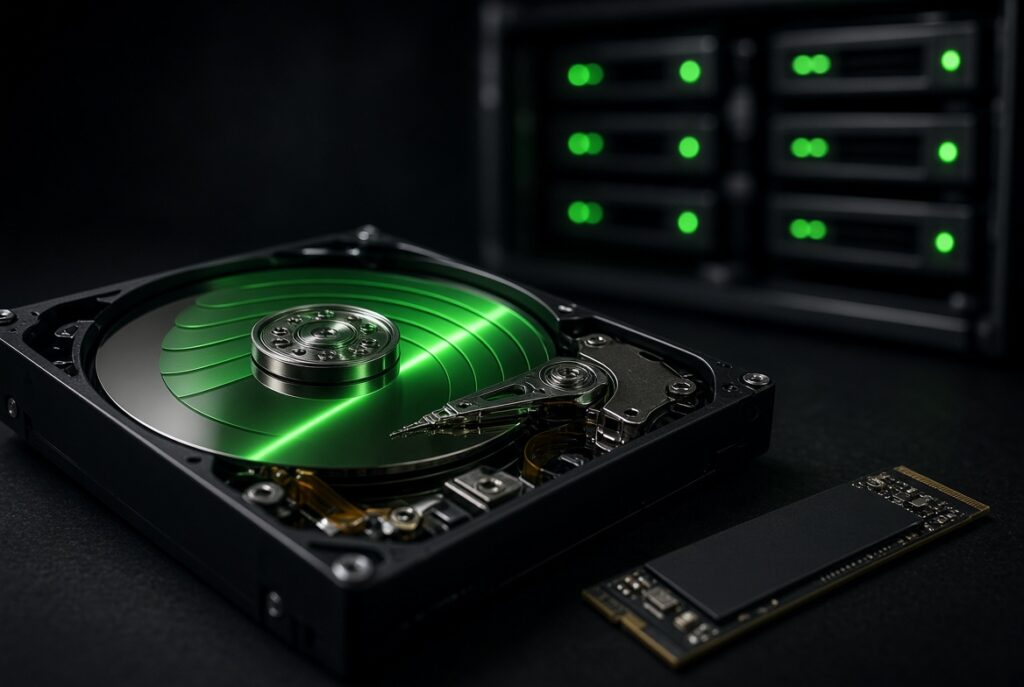
A big effects feature moves data by the petabyte. A YouTube channel or indie short won’t get close. But the pattern holds at any size. Drives fill faster than planned. And the one drive nobody backed up is the one that dies.
AI work adds its own weight. Image and video models ship as checkpoint files of several gigabytes each. A mid-size open-weight language model can need 40GB or more. Fine-tuning means keeping datasets and every checkpoint until you know which one worked.
This guide covers storage for video editing, VFX and AI. You’ll get what drives cost now, how hard drives record data, and the method drive makers sold without telling anyone. Then the hardware worth buying, a backup plan and the recovery software to keep handy.
A few hardware picks below link to Amazon. HollywoodCGFX may earn a small commission on qualifying purchases at no extra cost to you. See our affiliate disclosure.
In this guide
Think in three tiers
Most storage headaches come from asking one drive to do three jobs. Split the work. Each piece gets cheaper and safer.
The working tier is the fast stuff. That’s an internal NVMe SSD holding today’s project, your media cache, render scratch and the sim cache for the current shot. Speed is all that matters here. Capacity can stay modest, since nothing lives on it for long.
The project tier holds active and recent jobs. Camera originals, plates, renders, audio and model files live here. This is the job for a NAS or a RAID enclosure full of hard drives. It should be big, reasonably quick and redundant. Then one dead drive costs you an afternoon, not a client.
The archive tier is for finished work and footage you can’t reshoot. It should be cheap per terabyte and kept apart from everything else. Think big hard drives on a shelf, cloud storage, or LTO tape for studios. Flash is a poor shelf archive. An unpowered SSD slowly loses charge, and a worn one loses it faster.
Move projects down the tiers as they age. Editing 8K raw off a USB hard drive is a mistake. So is archiving ten years of work on one portable SSD.
What storage costs as of October 2026
This section will date. The rest won’t. Drive prices have roughly doubled in a year. Engadget tracked the average 4TB 3.5-inch hard drive at about $120 a year ago. By September 2026 it was about $240. 8TB models went from about $200 to $400. Flash got hit too. A 2TB SSD that sold for $120 to $200 last year can now approach $400.
The cause is AI data centers. Microsoft, Google, Amazon, Meta and the other hyperscalers buy hard drives by the millions for training data. They buy flash for inference. Western Digital’s CEO said the company is pretty much sold out for 2026. Seagate called its nearline capacity fully allocated. TrendForce put NAND contract prices up 70 to 75% in Q2 2026 alone. Pricey SSDs push buyers back to hard drives, which tightens that market further. Morgan Stanley expects the hard drive shortage to last through at least 2028.
The practical read: buy what you need for the next year, not the next five. And skip bargains from unknown marketplace sellers. Shortages are when used drives get sold as new. More on that below.
How a hard drive writes data
A hard drive stores data as tiny magnetized regions on spinning platters. They sit in rings called tracks. A head floats a few nanometers above the surface. It flips each region’s magnetic direction to write a one or a zero.
Nearly every capacity gain has come from packing those regions tighter. Now they’re close to too small to hold their magnetism. Each recording method below is a different answer to that problem.
CMR: the conventional way
Conventional magnetic recording (CMR, also called PMR) writes tracks side by side with a small gap. Any sector can be rewritten in place. Its neighbors stay untouched. That keeps CMR drives steady under the constant writing of editing, rendering and RAID rebuilds. For a NAS, RAID enclosure or workstation, CMR is what you want.
SMR: the shingled way
Shingled magnetic recording (SMR) uses a quirk. A drive’s write head is wider than its read head. So SMR writes each track partly over the last one, like roof shingles. It leaves only the thin strip the read head needs. The same platters hold more data, which cuts the cost per terabyte.
The catch comes when you change data. Rewriting one track damages the overlapping track next to it. So the drive must rewrite a whole band of tracks. Drive-managed SMR hides this with a small CMR cache area. New writes land there first. The drive moves them into the shingled bands when it’s idle.
For light use you never notice. Under heavy writing the cache fills and speed collapses. The drive can stall for seconds at a time. A RAID rebuild is hours of nonstop writing. Those stalls can get a drive kicked out of the array.
SMR isn’t a scam technology. Data centers run host-managed SMR, where the software knows the layout and writes in big sequential chunks. It works well. Drive-managed SMR is fine for a write-once archive drive at home, too. The trouble starts when nobody tells you it’s there.
Energy-assisted recording: ePMR, MAMR and HAMR
Smaller magnetic regions need harder magnetic material to stay stable. Harder material also resists being written. So drive makers add energy at the moment of writing. Western Digital’s ePMR and Toshiba’s microwave-based MAMR both use this idea. They push conventional recording past 20TB.
Heat-assisted magnetic recording (HAMR) is the bigger leap. A tiny laser heats a spot on iron-platinum media for a split second. The head writes while it’s hot. The data locks in as it cools.
Seagate sells HAMR under the Mozaic name. Its current platform supports drives up to 44TB. 50TB drives go to customers for testing in 2027. Those customers are hyperscalers. Consumer versions tend to arrive years later, if at all.
The SMR cover-up
In April 2020, NAS owners rebuilding ZFS arrays hit a problem. New WD Red drives kept failing out of their pools. WD Red was Western Digital’s NAS drive line. The trade site Blocks & Files dug in. WD had quietly moved its 2TB to 6TB Red models (the EFAX part numbers) to drive-managed SMR. The datasheets didn’t say so. Neither did the box.
Within days the story spread. Seagate confirmed to Blocks & Files that several Barracuda desktop drives used SMR. These included 2TB, 4TB and 8TB models. Their datasheets and manuals never mentioned it. Toshiba confirmed the same for its 4TB and 6TB P300 desktop drives. All three companies that still make hard drives had done it. An industry source gave Blocks & Files the motive: shingled drives cost less per terabyte.
WD first said its testing found no RAID rebuild problems. Independent testing disagreed. ServeTheHome rebuilt a ZFS array with CMR WD Reds in under 17 hours each. The SMR Red took nearly 230 hours for the same job. That’s almost ten days on a degraded array. One more failure and everything is gone.
A class action followed, Malone v. Western Digital. WD settled in 2021 and agreed to clearly disclose SMR on its Red drives. The lineup split in three. Plain WD Red is SMR. WD Red Plus and Red Pro are CMR. Seagate said its IronWolf and IronWolf Pro NAS drives never used SMR. It also said it never marketed Barracuda for NAS use.
The lasting damage is to trust. A NAS drive is a promise about workload. Swapping the recording method under that promise, with no word on the label, hurt the buyers least able to spot it.
The pattern didn’t stop in 2020
In 2025 Synology started restricting third-party hard drives in new Plus models like the DS925+. Use a drive not on its list and you got an unverified-drive warning. You also lost the ability to create a storage pool. Synology doesn’t make hard drives. Its branded ones are rebadged and cost more.
Buyers stayed away. Sales of the 2025 models reportedly dropped sharply. Synology reversed course with DSM 7.3 in October 2025. Third-party hard drives and 2.5-inch SSDs work again. M.2 NVMe cache drives are still limited to Synology’s own or certified SSDs.
Also in 2025, the German outlet Heise found used Seagate Exos drives sold as new. Some had already run 10,000 to 15,000 hours. Someone had reset their SMART data, the standard health log. Seagate’s separate FARM log still showed the real hours.
Seagate said it didn’t sell those drives to the resellers. It suspected earlier customers had resold them. Later batches showed up with FARM data altered too. IronWolf drives got caught up as well. Seagate wasn’t hiding anything this time. But for buyers the result was the same. The label couldn’t be trusted.
How to check what you’re buying
Read the maker’s datasheet, not the store listing. Look for the recording method by name. Today these lines are CMR: WD Red Plus and Red Pro, Seagate IronWolf, IronWolf Pro and Exos, Toshiba N300 and the Toshiba MG series. If a datasheet won’t say, assume SMR.
There’s a quick tell on Linux or a NAS command line. A spinning hard drive that reports TRIM support is almost always drive-managed SMR. CMR drives have no use for TRIM. Also, 2.5-inch hard drives above about 2TB are nearly all SMR. That’s what sits inside most portable USB hard drives.
Got a “new” drive? Check its warranty by serial number on the maker’s site. Look at its power-on hours. On Seagate drives, smartmontools 7.4 or newer reads the FARM log with smartctl -l farm. If FARM shows far more hours than SMART, the drive has a past. Buy from the maker’s store or the retailer itself, not third-party sellers. Keep the box until the drive passes a full surface test.
The best hard drives for editing, VFX and AI
For a NAS or RAID enclosure, Seagate IronWolf Pro is our first pick. It’s CMR and rated for multi-bay systems that run all day. It has a five-year warranty. It also comes with a period of Seagate’s Rescue data recovery service. That’s real insurance on a drive holding client work. Seagate IronWolf Pro on Amazon
WD Red Pro is its equal from Western Digital. It’s CMR, has a five-year warranty and is built for larger arrays. Buy whichever costs less per terabyte that week. Don’t mix brands or sizes in one array.
Enterprise drives often cost less per terabyte than NAS drives. These include Seagate Exos, WD Ultrastar and Toshiba’s MG series. They’re built for data center racks. They’re louder and run warmer. In a closet, that’s fine. On your desk during a quiet edit, you’ll hear it.
Manufacturer-recertified drives are a fair option in a shortage. Seagate and WD sell them with a warranty and clear labels. Make sure the seller lists the drive’s hours. A cheap “new” enterprise drive from an unknown seller is the opposite deal.
For simple backups, a big 3.5-inch desktop external drive is still the cheapest bulk storage. WD’s My Book and Seagate’s Expansion Desktop are typical. The drive inside varies and can be SMR. That’s fine for a backup you write once a week.
Fast working drives
Your working drive should be an internal NVMe SSD, separate from your system drive. Point your media cache, render cache and sim output at it. PCIe 4.0 handles 4K and most 6K work. PCIe 5.0 starts to matter for 8K raw, heavy EXR sequences and big sim caches. Stick to major flash makers like Samsung, Crucial or SK hynix.
Two specs matter more than the speed on the box. The first is endurance, listed as TBW (terabytes written). Cache drives and AI training scratch take a beating. Higher TBW buys you years. The second is flash type. TLC holds its speed under long writes. Cheaper QLC posts great peak numbers, then drops hard once its fast cache fills. That’s exactly what a long render or big dataset copy does.
The best NAS for editors and VFX artists
The Synology DS925+ is the pick if software matters most. Synology’s DSM is still the most polished NAS system. Its snapshot, replication and backup apps are the best on any prebuilt box. The DS925+ supports ECC memory. Since DSM 7.3 it takes third-party hard drives without complaint.
There are tradeoffs. Its AMD Ryzen chip has no hardware video transcoding. Networking is 2.5GbE. And its M.2 slots only take Synology’s own or certified SSDs for cache. Synology DS925+ on Amazon
The UGREEN NASync DXP4800 Plus gives you more hardware for the money. It has an Intel chip with Quick Sync for Plex or Jellyfin. You get a 10GbE port plus 2.5GbE, two M.2 slots with no approved list, and HDMI out. UGREEN’s UGOS software is younger than DSM. Its backup tools don’t go as deep. But for an editor who mainly needs fast shared storage, it’s the better value. The six-bay DXP6800 Pro is the step up for a small studio. UGREEN DXP4800 Plus on Amazon
Care most about data integrity? Look at a NAS running ZFS, like QNAP’s QuTS hero models. Or build your own on TrueNAS. ZFS checksums every block. It can repair silent corruption from the redundant copy. That makes sense when you keep camera originals for a decade.
The network decides whether a NAS feels like a local drive. Editing high-bitrate footage off a NAS needs 10GbE to your workstation. A direct cable between the two works, no switch needed. On 2.5GbE, plan on proxies. Or copy active shots to your working SSD.
Now drive layout. A four-bay unit in RAID 5, or Synology’s SHR, survives one failed drive. With 20TB-plus drives, a rebuild can take days. A second failure in that window kills the array. So six bays and up should run RAID 6 or SHR-2. Those survive two failures.
RAID is uptime, not backup. It will copy a deleted folder or a ransomware-locked project to every drive at once. Snapshots on Btrfs or ZFS give you the undo button RAID doesn’t.
The best portable drives
The Samsung T9 is the portable SSD we’d hand most editors. It’s small. It holds its speed through long transfers better than most. It has a five-year warranty. One catch: its top speed of about 2,000MB/s needs a USB 3.2 Gen 2×2 port. Macs don’t have one. On a Mac it runs at roughly half speed. But, that’s still plenty for 4K. Samsung T9 on Amazon
On a Mac, or any USB4 or Thunderbolt machine, the SanDisk Extreme PRO USB4 is faster. It’s rated up to 3,800MB/s read. That’s enough to edit 8K ProRes right off the drive.
SanDisk’s portable line has a history. In 2023 a wave of Extreme and Extreme PRO portable SSDs lost user data. Western Digital owned SanDisk then. It was slow to admit the problem, then shipped a firmware fix and faced lawsuits. SanDisk has been its own company since 2025. The USB4 drive is a newer generation. The lesson still applies to every brand. A portable drive is a working copy, never the only copy. SanDisk Extreme PRO USB4 on Amazon
Thunderbolt 5 drives like LaCie’s Rugged SSD Pro5 go faster still. They suit anyone moving huge camera files daily. Right now they’re priced like desktop RAID units.
Portable hard drives have one job left: a cheap second copy for travel. They top out around 100 to 150MB/s. They’re almost all SMR. And they hate being bumped while spinning. Fine for a backup in the hotel safe. Too slow and fragile to edit from.
For camera offloads, sustained write speed beats the peak number. Some drives write 2,000MB/s for 30 seconds, then drop to a few hundred. A 500GB card dump will take far longer than the box suggests. Look for reviews that test full-drive writes.
Backup that holds up
The 3-2-1 rule is still the floor. Keep three copies of anything you care about. Use two kinds of storage. Keep one copy somewhere else. A NAS plus a USB drive in the same room is two copies and zero offsite. A fire or break-in takes both.
Add two things the old rule leaves out. First, versioning, so you can roll back a bad or deleted file. Second, a real test restore every few months. A backup you’ve never restored is a guess.
On a Mac, Time Machine handles versioned system backups. Carbon Copy Cloner handles bootable clones and scheduled project copies. On Windows, use Veeam Agent’s free edition or Macrium Reflect. Comfortable at a command line? Restic, Kopia and rclone are free and open source. They back up to almost anything, encrypted and versioned.
For the offsite copy, Backblaze’s personal plan backs up one computer and its attached drives. There’s no size cap, as long as the drives get plugged in regularly. NAS owners can push to Backblaze B2 or Wasabi. Synology’s Hyper Backup and UGREEN’s backup app both do this.
Footage is the hard part. Uploading 10TB on a home connection takes weeks. So many editors rotate drives instead. One big external drive stays home for the weekly backup. The other sits at a friend’s place or the office. Swap them every week or two. Studios with real archives still use LTO tape. Once you’ve paid for the drive, it’s the cheapest way to keep data for decades.
For AI work, back up what you made, not what you downloaded. Public model weights can be downloaded again. Your fine-tunes, LoRAs, datasets, training configs and saved workflows can’t. A ComfyUI graph is a tiny JSON file. It can hold hours of tuning.
Data recovery software
Step one in any recovery: stop. Every new file can land on top of the data you want back. Don’t install recovery software on the drive you’re recovering. Don’t save recovered files back to it.
Is the drive clicking, grinding, beeping or not spinning up? Power it down. That’s a mechanical failure, and software can make it worse. Call a professional lab like DriveSavers, Ontrack or Gillware. Clean-room recovery often costs several hundred to a few thousand dollars. Most labs quote after a free evaluation.
Is the drive failing slowly, throwing read errors or dropping out? Clone it first. GNU ddrescue on Linux copies the readable data first and returns to bad areas last. The paid tools below have their own imaging features. Then recover from the clone, never the dying drive.
Know your odds. Deleted files on a camera card or hard drive usually come back if you stop right away. SSDs are different. TRIM tells the drive to wipe deleted blocks, often within minutes. Deleted files on an internal SSD are often gone for good. A formatted SSD almost always is. That alone is the best case for backup in this guide.
Disk Drill is the easiest place to start on Mac or Windows. It walks you through a scan, previews what it finds and rates each file’s odds. The free version lets you scan and preview before paying. It also has a byte-level backup tool for imaging a failing drive.
R-Studio is the pick once things get technical. It rebuilds RAID arrays from loose drives. It reads every major file system, including the ext4 and Btrfs most NAS boxes use. The interface assumes you know what a partition table is.
UFS Explorer covers similar ground. It goes deep on NAS and RAID layouts, virtual machine disks and encrypted volumes. If your NAS died and you’ve pulled its drives, use R-Studio or UFS Explorer.
DMDE is the budget power tool. It’s cheap, fast and very good at rebuilding damaged file systems. It’s also plain to look at. The free edition recovers a limited number of files per session. That’s enough to test it before you buy.
TestDisk and PhotoRec are free, open source and from the same developer. TestDisk repairs lost partitions and damaged boot sectors. It fixes a drive that suddenly shows as unformatted. PhotoRec ignores the file system and finds files by their signatures. That makes it surprisingly good on wiped camera cards. Files come back without their names, so expect a folder of numbered clips.
One rule for NAS owners. If your NAS reports a crashed volume, don’t let it repair, initialize or rebuild anything yet. Label each drive by its bay. Pull them, image each one, and point R-Studio or UFS Explorer at the images. A NAS that guesses wrong can overwrite the data needed to rebuild the array.
Three setups at three budgets
Solo editor or hobbyist: a 2TB or 4TB internal NVMe drive for working files. Add a Samsung T9 or SanDisk Extreme PRO for the project you carry. Back up nightly to a big desktop external drive, plus a cloud plan that covers both. Losing any one drive costs you only time.
Freelancer: add a four-bay NAS like the DXP4800 Plus or DS925+. Fill it with four matching CMR drives in RAID 5 or SHR. Connect it to your workstation with a direct 10GbE cable if the NAS has the port. Back the NAS up to the cloud nightly. Keep one rotating offline drive somewhere else.
Small studio: a six- or eight-bay NAS in RAID 6 or ZFS on a 10GbE switch. Take hourly snapshots. Replicate to a second NAS at another location. Send finished projects to LTO or the cloud. At this size, someone’s job should include checking that the backups ran.
This post contains Amazon affiliate links. We may earn a small commission on qualifying purchases at no extra cost to you. See our affiliate disclosure.

Leave a Reply